
MQTT ingestion
Manage Arc's MQTT subscriptions from the browser: set the broker URL, topics, QoS, and target database, enable TLS or mTLS, and watch per-session message and reconnect stats.
If you're pulling sensor and IoT data over MQTT, the MQTT tab manages the whole ingestion path from the browser, with no broker config files and no restarts. Each subscription tells Arc which broker to connect to, which topics to consume, and where to land the data.
Add a subscription
Click Add Subscription and configure the broker connection:
Broker connection
| Field | Description |
|---|---|
| Name | A label for the subscription. |
| Broker URL | e.g. tcp://broker:1883. Accepted schemes: tcp://, ssl://, ws://, wss://, mqtt://, mqtts://. |
| Client ID | Optional MQTT client identifier. |
| Username / Password | Optional broker credentials. |
| Target Database | The Arc database that consumed messages land in. |
| QoS | Quality of service: 0 (at most once), 1 (at least once), or 2 (exactly once). |
| Auto-start on Arc boot | Bring the subscription up automatically with the instance. |
Topics and routing
- Topics: one topic per line. The MQTT wildcards
+and#are allowed, sosensors/#works. - Topic → database mapping: optional
topic = databaselines that route different topics into different databases, so each stream lands where it belongs.
Secure transport (TLS / mTLS)
Enable TLS for encrypted broker connections, including full mTLS. Give the CA certificate path, client cert path, and client key path as paths on the Arc host (e.g. /etc/arc/ca.pem), not uploads. A Skip TLS verification option exists for testing against self-signed brokers.
Connection tuning
Under Advanced, keep-alive, connect timeout, and reconnect back-off (min and max) are all configurable in seconds, so you can match the subscription to your broker's behavior.
Live stats and lifecycle
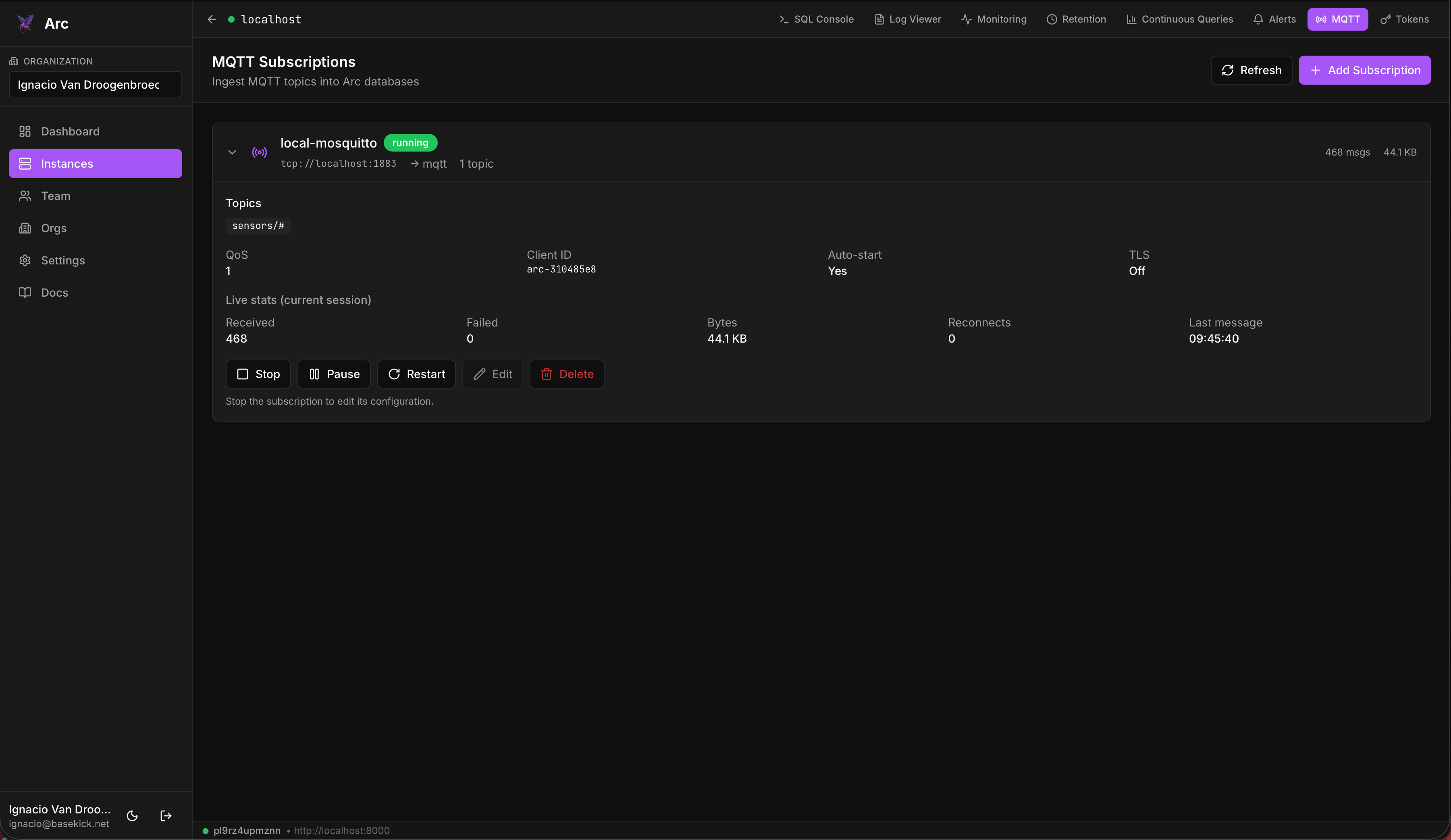
A running subscription card shows the broker, target database, topic count, and live stats for the current session: messages Received, Failed, Bytes, Reconnects, and the Last message time.
A running subscription offers Stop and Pause; a stopped one offers Start. Restart, Edit, and Delete are always available.
Stop to edit
A subscription must be stopped to change its configuration: stop it, edit, then start it again.
Availability & permissions
The MQTT tab is always present, but it only manages subscriptions when MQTT is enabled on that Arc instance; otherwise it says so and points you at the [mqtt] section of arc.toml. Managing subscriptions also requires the owner or admin role in the active organization.
Alerts
Define threshold alerts on Arc data from the Alerts tab: set a condition and check interval, point it at a webhook, and review recent triggers from the alert card.
API tokens
Manage the Arc API tokens your pipelines and applications authenticate with: scope each one to read, write, delete, or admin, copy it once, then revoke or delete it later.