
SQL console
Run SQL against a connected Arc instance from the browser: browse the schema tree, replay query history, run a selection or a whole script, and export results as CSV, JSON, Markdown, or a chart.
The SQL console is where you run queries against a connected Arc instance. Open a connection from Instances and you land on the console, with a tab bar across the top: SQL Console · Log Viewer · Monitoring · Retention · Continuous Queries · Alerts · MQTT · Tokens.
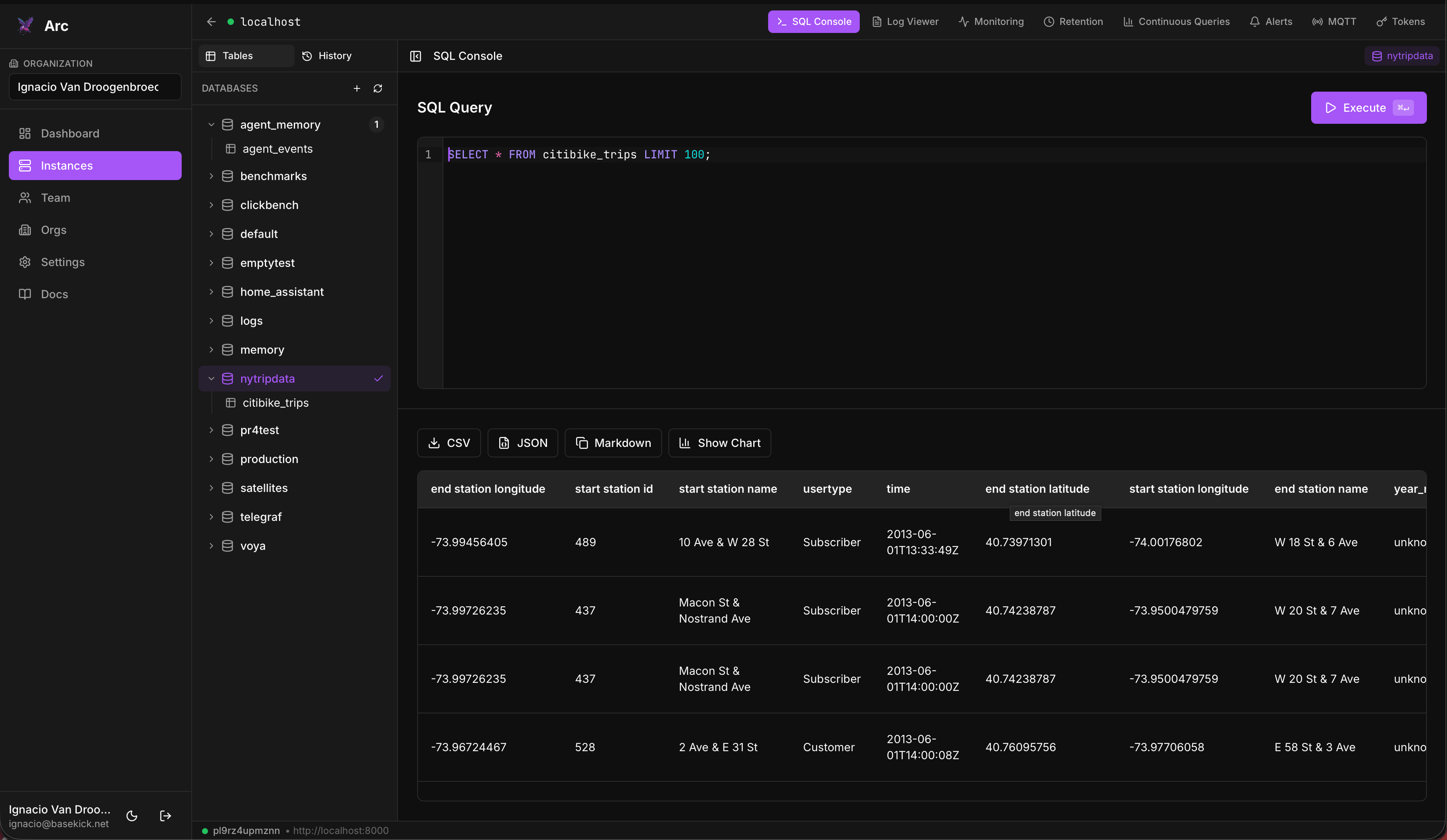
Schema explorer
The left panel has two tabs:
- Tables: a tree of your databases and their measurements (tables). Click a database to expand it and see its tables; the active database is highlighted. Use the + to create a database and the refresh icon to reload the tree.
- History: your recent queries, so you can re-run or tweak past work.
Selecting a database sets it as the query target (shown as a chip in the top-right of the editor).
Running a query
Type SQL in the editor and click Execute (or press the shortcut shown on the button). Select part of the query first and a Run Selection button appears, which runs only the highlighted statement.
SELECT * FROM citibike_trips LIMIT 100;Arc speaks standard analytical SQL, so window functions, CTEs, and joins all work. See the Arc SQL reference for the full dialect.
Multi-statement scripts
Run several statements in one go and the results panel gives each its own tab, so you can page through the output of a script without splitting it up by hand.
Exporting results
Below the result grid, export the current result set:
- CSV: download as a
.csvfile - JSON: download as JSON
- Markdown: copy a Markdown table to the clipboard (handy for issues and docs)
- Show Chart: render the result as a quick chart. It appears only when the result has a numeric column to plot.
Tips
- The status bar at the bottom shows which connection you're on and its Arc endpoint, alongside the row count and execution time of the last query.
- Query history is per-connection, so switching instances gives you that instance's history.
Connecting to Arc
Register an Arc server in Launchpad: supply the Arc HTTP API URL and an admin token, and allow private endpoints when Arc runs on a Docker network or private subnet.
Logs & monitoring
Two console tabs with different jobs: Log Viewer reads the log data you ingest into Arc, with pattern detection and trace extraction; Monitoring reports Arc's own instance health.