
Teams & organizations
Share Arc connections across a team: create organizations, invite members by email with a role, manage platform users and super-admins, and sign in with password, TOTP, or a passkey.
Launchpad is multi-tenant: users belong to organizations, and connections (Arc servers) are shared within an organization. This lets a team share access to the same instances with role-based permissions.
Organizations
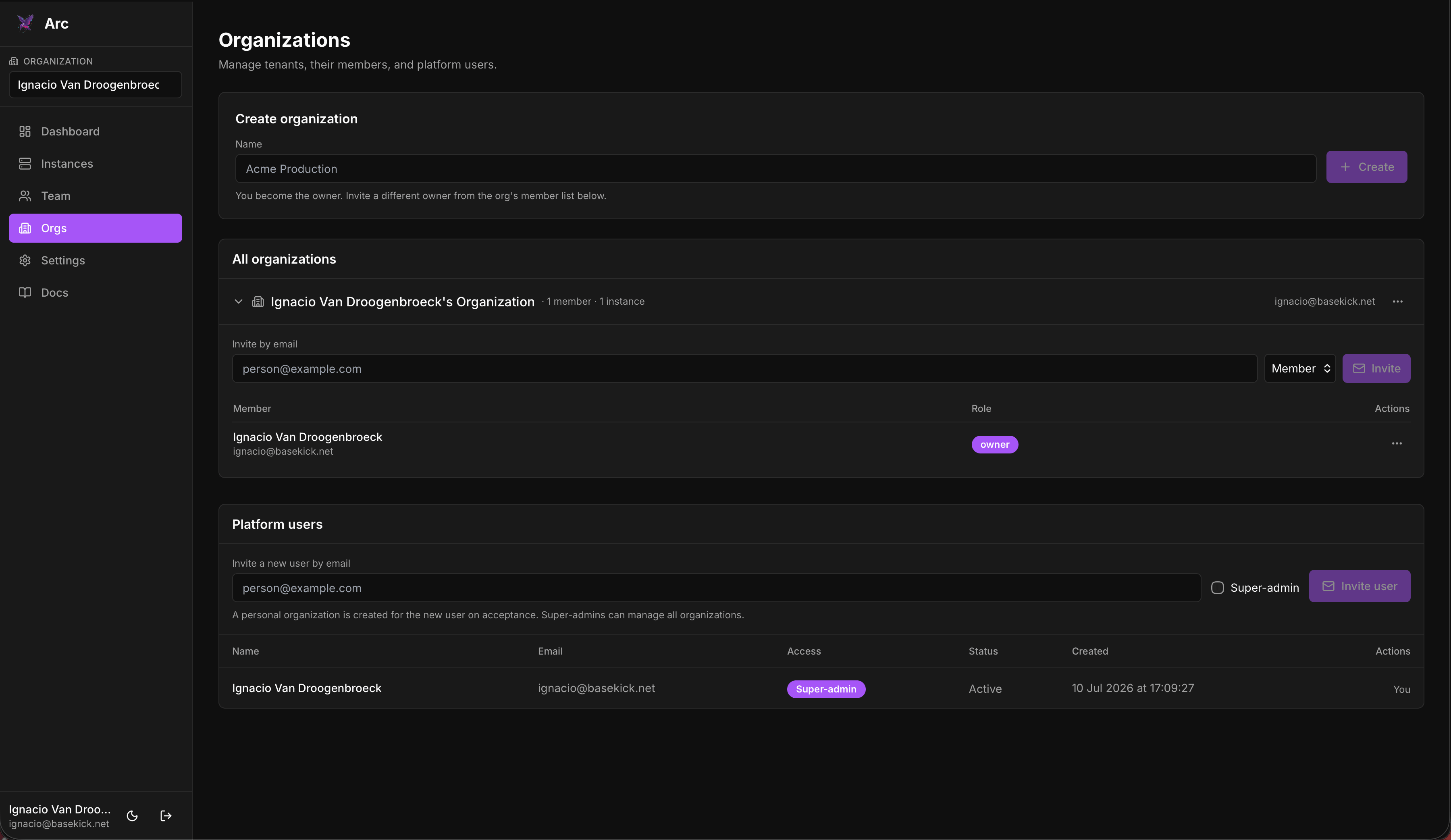
An organization is a tenant: a group of members who share a set of Arc connections. Every account gets a personal organization automatically; super-admins can create and review more from the Orgs page, which only they can see.
- Create organization: give it a name; you become the owner. You can invite a different owner from the org's member list afterward.
- All organizations: each org lists its members, their roles, and how many instances it holds.
Switch the active organization from the selector at the top of the sidebar. Connections and console access are scoped to the active org.
Members and roles
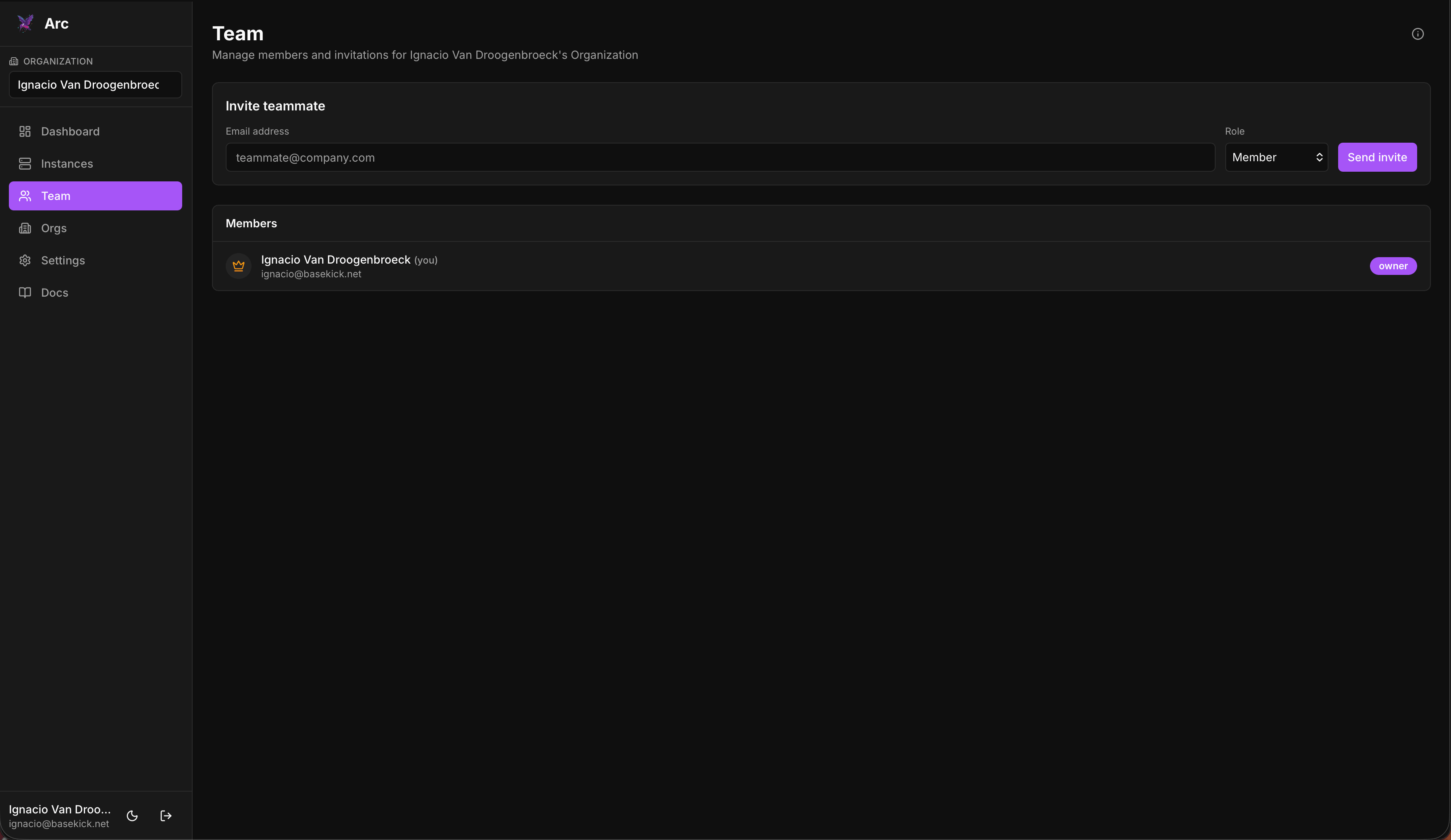
Invite people into an organization from the Team page: enter an email address, pick a role, and Send invite.
| Role | Can do |
|---|---|
| Owner | Full access. Manage instances, team, and roles. |
| Admin | Connect and remove instances. Invite members and viewers. |
| Member | Connect and remove instances. View the team. |
| Viewer | Read-only. View instances and the team, but cannot connect or modify instances. |
Owners and admins get the management surface: they can invite people, and they alone can create and change alerts. Only an owner can change another member's role, and the owner role can't be handed out through an invitation. Viewer is the read-only role; a member can still connect and remove instances.
Roles govern what you can do in Launchpad. What any of them can do on a given Arc instance also depends on the token registered for that connection: a token without admin permission limits the connection to querying and schema browsing no matter your role. See Connecting to Arc.
Platform users & super-admins
The Platform users section (Orgs page) manages accounts across the whole deployment:
- Invite a new user by email: a personal organization is created for the new user on acceptance.
- Super-admin: super-admins can manage all organizations, not just their own. Grant this only to operators who should see everything.
Signup and invitations
The first account you create becomes the admin. After that, self-service signup is closed by default; additional users join by invitation only. It's your deployment; you decide who's in it.
Invitations are delivered by email if you've configured a provider (Mailgun or SMTP). Without one, invitation links are printed to the server console instead; copy them from the logs and share them directly. See First-run setup.
Authentication
Launchpad uses local authentication, with no external identity provider required:
- Email + password: bcrypt-hashed, with strength requirements.
- MFA (TOTP): optional time-based one-time-password second factor, with recovery codes.
- Passkeys (WebAuthn): optional passwordless / hardware-key sign-in.
Auth endpoints (signup, login, password reset, MFA, and WebAuthn) are rate-limited per IP or per account. Manage your own MFA and passkeys under Settings.
Passkeys need a correct base URL
WebAuthn is bound to an origin. Make sure LAUNCHPAD_BASE_URL matches the URL users actually visit, or passkey registration/authentication will fail. See Configuration.
API tokens
Manage the Arc API tokens your pipelines and applications authenticate with: scope each one to read, write, delete, or admin, copy it once, then revoke or delete it later.
Configuration
Environment-variable reference for Arc Launchpad: LAUNCHPAD_JWT_SECRET, LAUNCHPAD_BASE_URL, the SQLite path, private-endpoint policy, adapter-node proxy headers, and Mailgun or SMTP email.